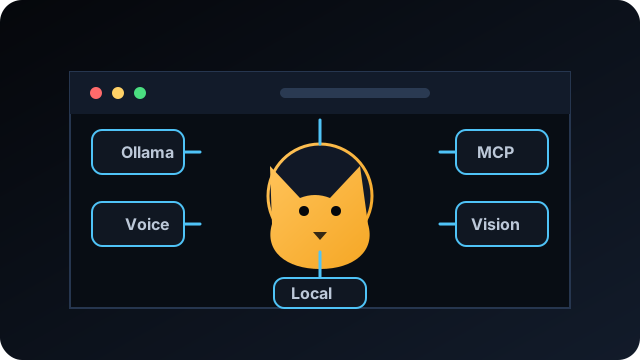
Fleet Dashboard
A central control surface for Ollama, voice, vision, local mode, and MCP services.
ADI AI brings chat, voice, vision, tools, memory, local models, and cloud model options into one dashboard. This page explains what ADI does, how to use it, and what each feature is for, without requiring you to already know the server internals.
ADI, Advanced Data Intelligence, is a self-hosted AI dashboard. Instead of using one isolated chatbot, ADI gives you one place to talk to models, use voice, show the camera, search the web, remember facts, manage tasks, and call tools connected to your own machines.
The goal is simple: make your AI feel like a capable local assistant, not just a text box. ADI can answer questions, help organize daily work, use connected services, keep useful memory, and show live status so you know what parts of the system are online.
Open the ADI dashboard, choose or confirm the active model in the top bar, then use the message box at the bottom. You can type a normal request, use the microphone, or ask ADI to use a connected tool.
Type into the message field and press send. ADI streams the answer into the chat and saves the conversation in the left sidebar so you can return to it later.
Click the microphone or say the configured wake phrase when wake-word is active. ADI listens, transcribes, sends the request, and can speak the response back.
Ask for actions naturally, like checking weather, searching the web, updating a list, remembering something, or looking in connected data. The MCP layer decides which tool to call.
Use Settings to change models, endpoints, backgrounds, voice behavior, radio endpoints, and other preferences.
ADI is made of several connected features. You can use it as a normal chat app, but the interesting part is that the chat can reach out into voice, vision, memory, tools, and local services.
Use the main input to talk to the selected model. Conversations save in the left sidebar, so ongoing work can be resumed instead of starting over every time.
The top bar shows the current model and context status. ADI can point at local Ollama models or other configured providers depending on the setup.
Wake-word, microphone input, transcription, and text-to-speech let ADI work more like a spoken assistant when those services are online.
Camera and multimodal support let ADI describe what it sees, help reason about visual context, or pass image-aware tasks to connected vision models.
When a question needs current information, ADI can use web search tools instead of relying only on model memory.
ADI can manage lists and tasks through MCP tools, so a request like "add milk to my shopping list" can become a real stored action.
Important facts can be stored as entities, relations, and observations. This gives ADI a structured memory it can search and build on later.
When enabled, ADI can work with local files or safe database queries, making it useful for projects, notes, and structured information.
Selected video or image backgrounds customize the dashboard while keeping the chat and HUD readable.
The feedback button lets visitors report bugs, ideas, questions, or rough edges. Feedback is stored privately for follow-up.
ADI Radio stream and now-playing endpoints can be configured from Settings, so audio features are not locked to one hardcoded service.
Low-latency spoken conversation at /adi/realtime/ using the Qwen-Omni realtime bridge. Microphone audio streams up and spoken replies stream back over a live websocket held open by bridge.py. Requires a DashScope key.
Captures and transcribes longer audio into saved sessions you can review and search later. Useful for meetings, dictation, and turning spoken notes into text.
A focused text-to-speech playback mode that reads responses, or any text you give it, aloud using the configured voice.
A streamlined, latency-optimized view that pins a fast “live” model for quick back-and-forth and voice exchanges, separate from the full chat dashboard.
A built-in Docmost-style notebook. The notes tool lets ADI search, read, and create notes during a conversation, so written knowledge sits alongside the knowledge graph.
A touch-optimized interface for phones and tablets that keeps the core chat, voice, and tool features within easy reach on a small screen.
When a ComfyUI endpoint (COMFY_BASE) is configured, ADI can generate images with FLUX models. All image features stay hidden when the endpoint is unset.
ADI has a built-in username and password login. Each account gets its own conversations and settings, and an admin account unlocks the admin panel. Sessions last three days. See Deployment And Access for the full authentication model.
A browser-based code workspace at /adi/code/ with an editor, file tree, and an integrated Cline coding agent that can read, write, and run against your project using the same local and cloud models ADI already has configured.
An in-browser document editor at /adi/office.php backed by Collabora Online (CODE) over the WOPI protocol. List editable documents, open one full-page, and edit Word, Excel, and PowerPoint files directly in the dashboard.
Beyond ADI Radio, the Music page at /adi/music/ browses your local media library and can suggest tracks. Now-playing and library data flow through the media MCP server.
The HUD is the compact row of icons above the message box. It tells you which services and tools are online, which overlays are active, and whether ADI can reach the systems it depends on.
Camera, weather, music, and visual overlays can be toggled from the HUD when those features are configured.
The signal bars give a quick visual hint about service responsiveness, especially around wake-word and voice services.
Settings is where ADI becomes your system instead of a generic interface. The most important tab for connected services is Endpoints, where model hosts and service URLs are managed.
Choose which model ADI should talk to, such as a local Ollama model or another configured provider.
Configure Ollama, ADI Radio, web search, and other service URLs from one place.
Change themes, backgrounds, opacity, and dashboard feel so the interface fits the way you like to work.
Enable or tune the speech, wake-word, camera, and MCP-powered tools your installation supports.
Provider credentials live under Settings → API Keys. Values are pre-filled from settings and saved in the database; when a field is left empty, the daemon falls back to the matching variable in its .env. Each key is optional — you only need the ones for providers you actually use. Keys are stored per provider in the formats shown below.
sk-...DashScope key for Qwen-Omni realtime at /adi/realtime/. Create one in Alibaba Cloud Model Studio (DashScope) at dashscope.console.aliyun.com/apiKey (international: modelstudio.console.alibabacloud.com). The bridge (bridge.py) reads DASHSCOPE_API_KEY from env today — sync the same value there for now.
ollama_...Used for :cloud-suffixed Ollama models routed to ollama.com. Generate a key at ollama.com/settings/keys (sign in first).
sk-...For GPT-4 / 4o / 5 and friends via the OpenAI API. Create a secret key at platform.openai.com/api-keys (requires a funded account or active credits).
sk-ant-...For Claude (Opus / Sonnet / Haiku) via Anthropic's API. Create a key at console.anthropic.com/settings/keys.
AIza...For Gemini models via Google AI Studio. Click “Get API key” at aistudio.google.com/app/apikey.
sk-or-...Routes namespaced models like openrouter/openai/gpt-4o-mini through OpenRouter. Create a key at openrouter.ai/keys.
sk-...For Mistral models via api.mistral.ai/v1/chat/completions; model IDs use the mistral/ picker prefix. Create a key at console.mistral.ai/api-keys.
nvapi-...For NVIDIA NIM hosted inference at integrate.api.nvidia.com/v1/chat/completions; picker IDs use nvidia/. Get a key from any model page via “Get API Key” at build.nvidia.com.
gsk_...For Groq's OpenAI-compatible endpoint at api.groq.com/openai/v1/chat/completions. Create a key at console.groq.com/keys.
github_pat_...For models.github.ai/inference/chat/completions. Create a fine-grained personal access token with Models: read access at github.com/settings/personal-access-tokens/new.
sk-...For DeepSeek's OpenAI-compatible API; picker IDs use deepseek/, then the provider sends deepseek-v4-flash or deepseek-v4-pro. Create a key at platform.deepseek.com/api_keys.
After pasting a key, save Settings and reload. If a provider keeps falling back to .env, confirm the matching variable (for example DASHSCOPE_API_KEY) is set for the daemon as well.
The model picker uses the model ID itself to decide which provider handles a request:
OLLAMA_BASE.:cloud suffix routes the model to Ollama Cloud at ollama.com.openrouter/, mistral/, nvidia/, groq/, deepseek/, and so on — sends the request to that provider's API using its key.
Capability lists in config.php (TOOL_CAPABLE_MODELS, VISION_CAPABLE_MODELS, LIVE_OPTIMIZED_MODELS) tell ADI which models may use tools, accept images, or drive Live mode, so the UI only offers each capability where the chosen model supports it.
MCP is the layer that lets ADI do useful work beyond answering in text. When tools are available, ADI can call them during a conversation and return the result in the chat.
The Knowledge Graph stores information as connected facts. For example, ADI can remember that a person owns a project, a service runs on a host, or a preference belongs to a user. This makes memory more structured than a simple note.
This section is for technically curious visitors. ADI is modular: the browser interface talks to PHP endpoints, those endpoints talk to models and databases, and MCP servers expose tools that the assistant can call.
The web interface is PHP-rendered with JavaScript for streaming chat, voice controls, HUD status, backgrounds, and feedback links.
public/index.php is the main chat dashboard.public/settings.php stores endpoint, model, and UI settings.public/assets/ holds CSS, JavaScript, backgrounds, icons, and videos.PHP endpoints stream model output, proxy tools, save state, and talk to MariaDB. System services handle model APIs, speech, wake-word, and MCP servers.
lib/config.php defines service bases and MCP servers.lib/helpers.php centralizes database and conversation helpers.lib/auth.php handles session login, the require_login() / require_admin() guards, and the current-user lookup.lib/providers/ holds one adapter per model provider (Anthropic, OpenAI, Google, Ollama Cloud, OpenRouter, Mistral, NVIDIA, Groq, GitHub Models, DeepSeek), most sharing the OpenAI-compatible base.public/api/ exposes chat, health, radio, weather, TTS, draw, launch, media, notes, share, and upload endpoints./opt/adi-ai/
lib/
schema/
services/
mcp/
private/
backups/
feedback/
logs/
public/
api/
assets/
uploads/These lightweight SVG panels show the major pieces of ADI at a glance. They are local assets, so they can ship with the public site or a GitHub package without remote image dependencies.
A central control surface for Ollama, voice, vision, local mode, and MCP services.
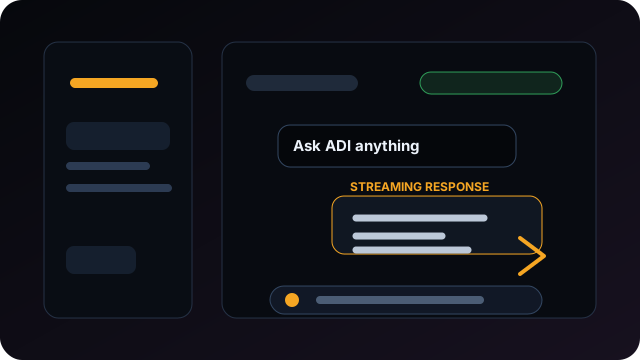
The main conversation surface streams model output while keeping status visible.
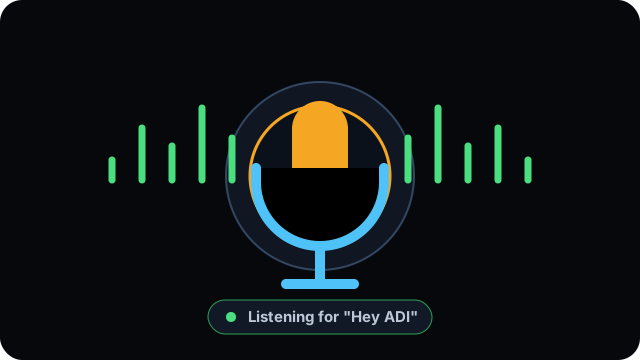
Wake-word, microphone input, transcription, and voice response are part of the live HUD flow.
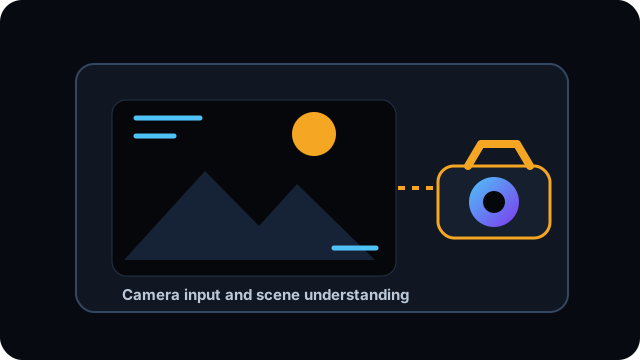
Camera input gives ADI scene context for describe, draw, and multimodal workflows.
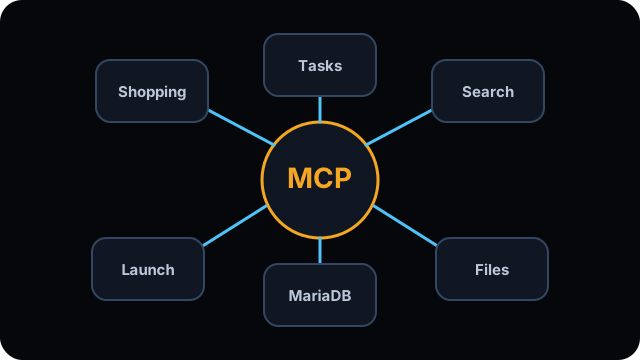
Shopping, tasks, search, files, launchers, and database tools connect through MCP.
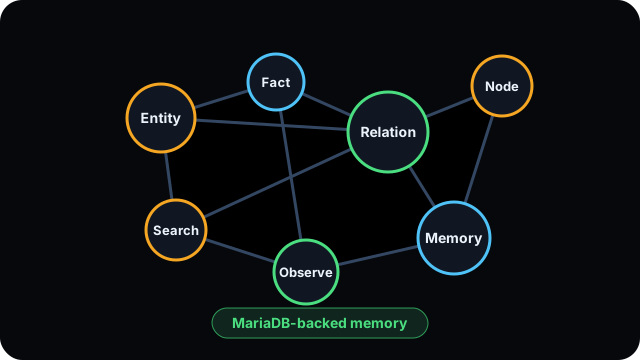
Entities, relations, and observations are stored in MariaDB and exposed through the Memory MCP server.
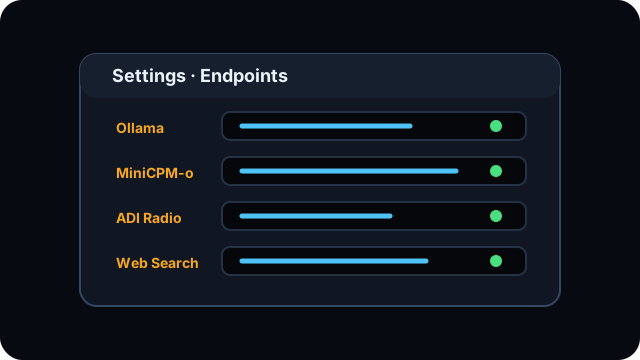
Ollama, ADI Radio, and web search endpoints can be adjusted from Settings.
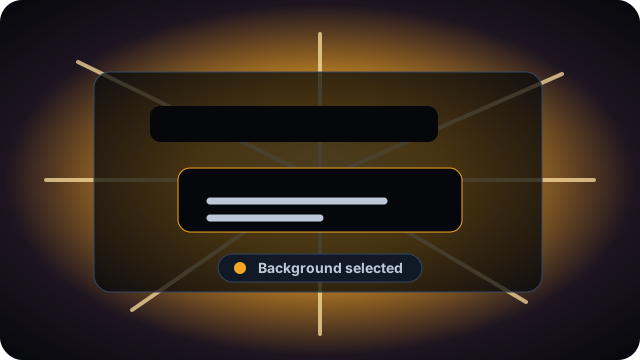
Selected video and image backgrounds turn the chat surface into a customizable cockpit.
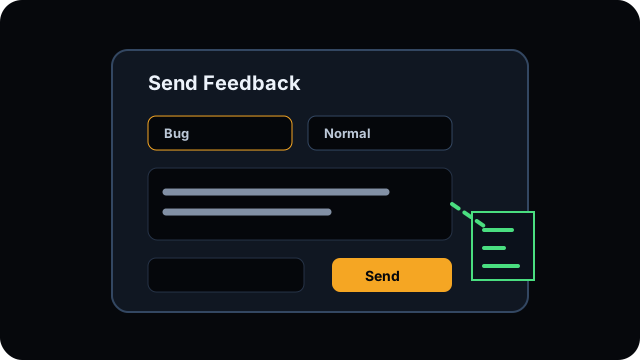
The public feedback form captures issues, ideas, page context, and contact details for follow-up.
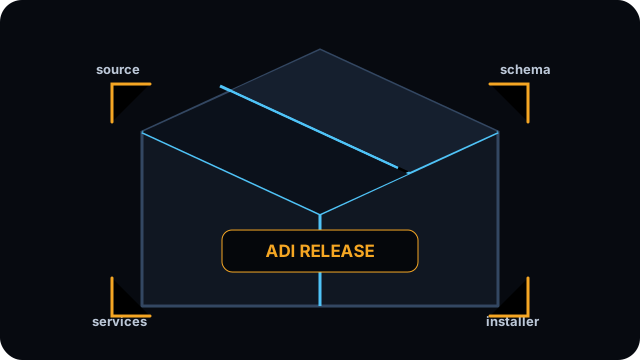
The release package should include source, schema, service templates, installer scripts, and example config.
This part is for people who want to run ADI themselves. A typical installation uses Apache, PHP, MariaDB, Node.js, local model services, and one or more MCP servers.
/opt/adi-ai and point Apache to /opt/adi-ai/public or serve it under /adi/./etc/systemd/system/, reload systemd, and enable the services you want.sudo systemctl daemon-reload
sudo systemctl enable --now mcp-memory
sudo systemctl status mcp-memory --no-pagerphp -l /opt/adi-ai/public/index.php
php -l /opt/adi-ai/public/settings.php
curl -k https://thelab-genesis.local/adi/api/health.php
systemctl status mcp-memory --no-pager
journalctl -u mcp-memory -n 50 --no-pager/opt/adi-ai before structural changes.
ADI now has a built-in login. Protected pages call require_login() and redirect anyone without a session to /adi/login/, so the dashboard is no longer open to whoever can reach the origin. For internet-facing installs it is still strongly recommended to layer an authenticating reverse proxy — Cloudflare Access (Zero Trust) in the reference build — in front of the app for defense in depth.
users table (04_users.sql): username, bcrypt password_hash, display name, optional avatar, and an is_admin flag. Create the first account directly in the database, then manage the rest from the admin panel.lib/auth.php). Sessions last three days (ADI_SESSION_LIFETIME), with HttpOnly, SameSite=Lax cookies that set the Secure flag automatically behind HTTPS or a proxy that forwards X-Forwarded-Proto.user_id (row 0 is the shared/system default). Admin-only pages call require_admin() and 403 for everyone else./adi/logout.php destroys the session and returns to the login page. (Where Cloudflare Access also fronts the site, its own /cdn-cgi/access/logout ends the proxy session independently.)
cloudflared runs on the host and routes the public hostname to Apache on localhost; Cloudflare terminates TLS, so the vhost only needs port 80. Add an ingress entry, route DNS to the tunnel, then create a Zero Trust Access application and policy for the hostname.
# /etc/cloudflared/config.yml
ingress:
  - hostname: ai.example.com
    service: http://localhost:80
    originRequest:
      httpHostHeader: ai.example.com
  - service: http_status:404
cloudflared tunnel route dns <TUNNEL_ID> ai.example.com
sudo systemctl restart cloudflared
# then add an Access application + policy for ai.example.com in Zero Trust/opt/adi-ai to the same path (rsync or tar), preserving permissions and the private secrets.php and .env files. Keeping the path identical means no config rewrite.mysqldump --databases adi_ai_db), import it on the target, then recreate the app DB user and its grants.venv on the target (a venv is not portable); the Node MCP node_modules are pure JS and copy cleanly.daemon-reload and enable them.web_search works.public + Alias /adi) and verify locally with curl and the health endpoint./adi/api/health.php is all green and the dashboard renders over a local curl with the right Host: header, then route public traffic.
Each tool category is a small server speaking Streamable HTTP on localhost, managed by systemd:
mariadb — port 3333 — shopping list, web_search, SQL helpers, fetch_url — unit mcp-mariadb.servicememory — port 3334 — knowledge graph — unit mcp-memory.servicetodo — port 3336 — unified to-do list — unit mcp-todo.servicenotes — port 3337 — notes search and CRUD — unit mcp-notes.servicemedia — port 3338 — media library and now-playing — unit mcp-media-library.servicefiles — port 9122 — sandboxed file read/write (Python) — unit files-mcp.servicesystemctl status mcp-mariadb --no-pager
sudo systemctl restart mcp-notes
journalctl -u mcp-memory -n 50 --no-pager
The web_search tool queries a local SearXNG instance. The reference build runs it in Docker bound to 127.0.0.1:8888. SearXNG ships with the JSON output format disabled — you must enable it in settings.yml or the tool returns nothing. SEARXNG_BASE in config points the app and the mariadb MCP at it.
docker run -d --name searxng --restart unless-stopped \
  -p 127.0.0.1:8888:8080 \
  -v /opt/adi-ai/private/searxng:/etc/searxng \
searxng/searxng:latestThe voice path is made of separate services, each configured under Settings → Endpoints (they can run locally or on another host):
OMNIVOICE_BASE) — generates spoken replies.PARAKEET_TRANSCRIBE_URL) — transcribes speech to text.WAKEWORD_WS_URL) — detects “Hey ADI” over a websocket./adi/realtime/.Their reachability is reflected in the HUD service icons and the health endpoint.
MariaDB database (default adi_ai_db). Schema files in /opt/adi-ai/schema/ are applied in order:
01_core.sql — conversations, messages, settings02_shopping.sql — shopping items03_todo.sql — todos and categories04_users.sql — user accounts, plus per-user user_id columns added to settings and conversations (apply once)05_notes.sql — notes and notebooks06_scribe.sql — scribe sessions
lib/config.php holds non-secret constants; secrets live in a git-ignored private/secrets.php that config requires, so credentials never sit in the main config or version control. Notable constants:
OLLAMA_BASE, OMNIVOICE_BASE, PARAKEET_TRANSCRIBE_URL, WAKEWORD_WS_URL, SEARXNG_BASE, MCP_BASE, MCP_SERVERSAPP_BASE (default /adi), APP_TIMEZONE, UPLOAD_DIR, UPLOAD_MAX_MB, FILES_SANDBOX_DIR, VIDEO_DIR, WEATHER_DEFAULT_CITYLOCAL_MODEL, CLOUD_MODEL, LIVE_MODEL, FORCED_MODEL, CLOUD_MODELS, OLLAMA_NUM_CTX, MCP_MAX_ROUNDS, TOOL_CAPABLE_MODELS, VISION_CAPABLE_MODELS, LIVE_OPTIMIZED_MODELSOMNIVOICE_VOICE, TTS_CACHE_DIRCOMFY_BASE and the FLUX_* settings
/adi/api/health.php returns JSON with the status and latency of Ollama, the wake word service, Parakeet, and the MCP layer (including live tool count and categories), plus which Ollama models are currently loaded. It is the fastest way to confirm the whole stack and is exactly what the HUD service icons reflect.
curl -s http://127.0.0.1/adi/api/health.php | jqpublic/.127.0.0.1 so they are reachable only from the host, never the public internet.public/uploads and public/files — keep them access-controlled and out of any public listing.Check database credentials, conversation tables, PHP error logs, and whether prepared queries are being used correctly for user-scoped conversation reads.
Confirm the setting value, asset path, file permissions, video MIME type, and browser cache. Test the direct background URL in the browser.
Check the relevant MCP service status, the app health endpoint, and whether the MCP server is returning tools. For Memory, check mcp-memory and http://127.0.0.1:3334/healthz.
Inspect the feedback table columns and submit processor. The form should persist the main message field plus metadata such as type, priority, contact, page, URL, source IP, and user agent.
If a provider keeps using the daemon's value instead of the one you saved, confirm the key saved to the database (Settings → API Keys), that it is in the right format for that provider, and that the matching .env variable (for example DASHSCOPE_API_KEY) is not overriding it elsewhere. Reload after saving.
Check the health endpoint's tool_count and the per-server status. A missing category usually means that one MCP service is down — restart its unit (for example mcp-notes.service) and read its journal. The mariadb MCP also needs MariaDB up, and web_search needs the SearXNG container running.
Verify the TTS, Parakeet, and wake-word endpoints in Settings and confirm the host can actually reach them (the health endpoint reports each one). For realtime voice, check that the DashScope key is set and bridge.py is running.
The tunnel cannot reach the origin. Confirm Apache is serving the vhost on localhost, that the cloudflared ingress hostname and httpHostHeader match, and that cloudflared is active with registered connections. Test the origin directly with a local curl and the right Host: header to isolate Apache from the tunnel.
Check that OLLAMA_BASE is reachable and the model is pulled on that host. The health endpoint lists loaded models; large models may need more VRAM or a longer first-load timeout. For :cloud models, confirm the Ollama Cloud key.
The SearXNG JSON format is disabled by default. Enable JSON in settings.yml, restart the container, and verify SEARXNG_BASE points at it. Test directly: curl "http://127.0.0.1:8888/search?q=test&format=json" should return JSON, not an error page.